How to Make a Mind Map on Google Docs: The Complete Beginner-to-Expert Guide
If you are searching for how to make a mind map on Google Docs, you are not alone. Students, teachers, business professionals, marketers, project managers, and content creators use mind maps every day to organize ideas, improve brainstorming sessions, and simplify complex information.
Mind mapping has become one of the most effective visual thinking techniques because it helps people connect ideas, identify relationships, improve memory retention, and increase productivity. While many people use dedicated mind mapping software, Google Docs offers a free and accessible way to create mind maps without purchasing additional tools.
The best part is that Google Docs integrates seamlessly with other Google Workspace applications, making collaboration simple and efficient. Whether you are planning a project, outlining a blog post, preparing for an exam, organizing business strategies, or brainstorming creative ideas, learning how to make a mind map on Google Docs can significantly improve your workflow.
This comprehensive guide explains everything you need to know about creating, customizing, sharing, and optimizing mind maps in Google Docs. It also provides expert insights, practical examples, common mistakes to avoid, and advanced techniques that go beyond what most online tutorials offer.
What Is a Mind Map?
Before learning how to make a mind map on Google Docs, it is important to understand what a mind map actually is.
A mind map is a visual diagram that starts with a central idea and expands outward into related topics, subtopics, and supporting details.
Instead of presenting information in a traditional list format, a mind map shows relationships between concepts.
A typical mind map includes:
- Central topic
- Main branches
- Sub-branches
- Keywords
- Connections
- Visual elements
Mind maps help people see the bigger picture while also understanding specific details.

Why Use a Mind Map?
Mind maps offer several advantages over traditional note-taking methods.
Also read:Anti-Snoring Mouthpieces and How They Improve Sleep Quality Naturally
Better Organization
Mind maps help organize information logically and visually.
Improved Memory
Visual learning techniques often improve information retention.
Faster Brainstorming
Ideas can be added quickly without worrying about structure initially.
Increased Creativity
The branching structure encourages creative thinking and idea generation.
Better Problem Solving
Mind maps make it easier to identify connections and potential solutions.
Enhanced Collaboration
Teams can work together more effectively when information is presented visually.
Why Create a Mind Map in Google Docs?
Many people ask why they should use Google Docs instead of specialized mind mapping software.
There are several reasons.
Free Access
Google Docs is free for most users.
Cloud-Based Storage
Documents are automatically saved online.
Real-Time Collaboration
Multiple users can work simultaneously.
Easy Sharing
Mind maps can be shared through links or permissions.
Integration with Google Workspace
Google Docs works seamlessly with:
- Google Drive
- Google Sheets
- Google Slides
- Google Meet
- Google Classroom
No Additional Software Needed
Users can create simple and effective mind maps without installing new programs.
Understanding the Limitations of Google Docs
Although Google Docs is useful, it is important to understand its limitations.
Google Docs is primarily a word-processing application rather than a dedicated mind mapping tool.
This means:
- Manual design is required
- Advanced mind mapping features are limited
- Automatic branch generation is unavailable
- Layout flexibility is somewhat restricted
However, for many users, Google Docs provides more than enough functionality.
How to Make a Mind Map on Google Docs Step by Step
Now let’s explore exactly how to make a mind map on Google Docs.
Step 1: Open Google Docs
Sign in to your Google account.
Open Google Docs and create a new blank document.
Step 2: Insert a Drawing
Navigate to:
Insert → Drawing → New
This opens Google’s built-in drawing canvas.
The drawing tool is where most of the mind map creation process takes place.
Step 3: Create the Central Idea
Select the Shape tool.
Choose a circle, rectangle, or another shape.
Place it near the center of the canvas.
Type your main topic inside the shape.
Examples include:
- Marketing Strategy
- Business Plan
- Study Notes
- Project Timeline
- Blog Content Ideas
This central node becomes the foundation of your mind map.
Step 4: Add Main Branches
Select the Line tool.
Draw lines extending outward from the central topic.
At the end of each line, add another shape.
These shapes represent major categories related to your main idea.
For example:
Main Topic: Content Marketing
Branches:
- SEO
- Social Media
- Email Marketing
- Blogging
- Analytics
Step 5: Add Subtopics
Continue expanding each branch.
Create additional shapes connected to the primary branches.
For example:
SEO
- Keywords
- Backlinks
- Technical SEO
- On-Page SEO
Social Media
- TikTok
This hierarchical structure creates the visual map.
Step 6: Customize Colors
Colors improve readability.
Use different colors for:
- Main categories
- Subcategories
- Important concepts
Color coding helps users quickly identify relationships.
Step 7: Add Text Labels
Keep text concise.
Use keywords rather than full sentences whenever possible.
Mind maps work best when information remains easy to scan.
Step 8: Save and Insert
Click Save and Close.
Your completed drawing will appear inside the Google Docs document.
Alternative Method: Creating a Mind Map with Google Drawings
Some users prefer using Google Drawings directly.
Google Drawings provides:
- Larger workspace
- Better layout flexibility
- Easier editing
- Enhanced visual control
The process is similar but often more comfortable for larger mind maps.
Best Mind Map Structures for Different Uses
Different projects require different mind map structures.
Brainstorming Mind Maps
Best for:
- New ideas
- Creative projects
- Team discussions
Characteristics:
- Flexible branches
- Rapid idea generation
- Minimal structure
Project Planning Mind Maps
Best for:
- Business projects
- Product launches
- Team management
Characteristics:
- Clear hierarchy
- Task assignments
- Deadlines
Educational Mind Maps
Best for:
- Study notes
- Exam preparation
- Research summaries
Characteristics:
- Topic organization
- Visual memory aids
- Concept relationships
Content Creation Mind Maps
Best for:
- Blog planning
- Video ideas
- Marketing campaigns
Characteristics:
- Keyword clusters
- Content themes
- Publishing schedules
How Students Can Use Mind Maps in Google Docs
Students are among the biggest beneficiaries of mind mapping.
Also read:Betanden: The Complete Guide to the Wellness Innovation Transforming Everyday Living in 2026
Applications include:
Exam Preparation
Organize subjects into visual summaries.
Essay Planning
Structure arguments before writing.
Research Projects
Map sources and supporting evidence.
Note Taking
Convert complex lectures into easy-to-review diagrams.
Studies consistently show that visual learning methods can improve comprehension and retention.
How Businesses Use Mind Maps
Businesses increasingly use mind maps for strategic planning.
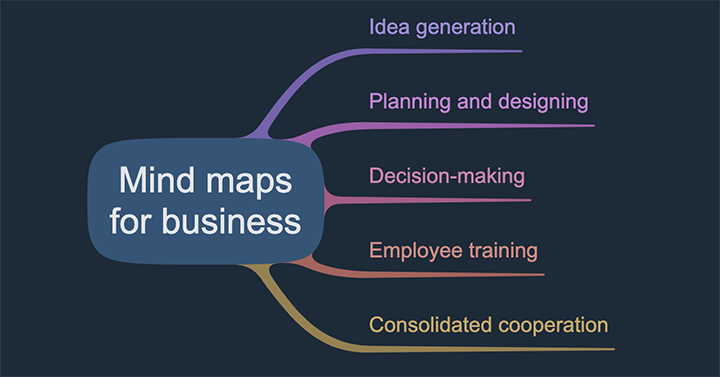
Popular applications include:
Project Management
Visualize tasks and responsibilities.
Strategic Planning
Map goals and initiatives.
Marketing Campaigns
Organize content and promotion strategies.
Team Collaboration
Facilitate idea sharing during meetings.
Product Development
Visualize product features and customer needs.
How Content Creators Use Mind Maps
Content creators frequently rely on mind mapping techniques.
Examples include:
Blog Content Planning
Create article outlines quickly.
SEO Strategy
Organize keyword clusters.
Video Production
Plan scripts and content sequences.
Social Media Campaigns
Map platform-specific content ideas.
Common Mistakes When Creating Mind Maps
Many beginners make similar mistakes.
Using Too Much Text
Mind maps should focus on keywords.
Overcrowding the Diagram
Too many branches can reduce readability.
Poor Color Usage
Random colors create confusion.
Lack of Hierarchy
Relationships between ideas should remain clear.
Ignoring Visual Balance
Well-spaced elements improve comprehension.
Advanced Mind Mapping Techniques
Once you master the basics, consider advanced methods.
Use Symbols
Icons can communicate ideas quickly.
Add Images
Visual cues improve memory.
Create Cross Connections
Link related branches.
Prioritize Information
Use size, color, and placement to indicate importance.
Apply the 80/20 Rule
Focus on the most important concepts first.
Expert Insights: Why Most Mind Maps Fail
Most online tutorials focus only on drawing shapes.
However, the effectiveness of a mind map depends on thinking, not design.
A beautifully designed mind map with poor organization provides little value.
Successful mind maps focus on:
- Clear central topics
- Logical relationships
- Meaningful categories
- Actionable insights
The real purpose is not creating art.
The purpose is improving understanding and decision-making.
This distinction is often overlooked.
Google Docs vs Dedicated Mind Mapping Software
Google Docs Advantages
- Free
- Easy access
- Collaboration
- Cloud storage
Google Docs Disadvantages
- Limited automation
- Manual design process
- Fewer advanced features
Dedicated Software Advantages
- Automatic layouts
- Templates
- AI features
- Advanced customization
Dedicated Software Disadvantages
- Subscription costs
- Learning curves
- Additional software requirements
For many users, Google Docs offers the ideal balance of simplicity and functionality.
Tips for Creating Better Mind Maps
Start Simple
Avoid overcomplicating the structure initially.
Use One Word Keywords
Single words improve scanning speed.
Think Visually
Focus on relationships rather than lists.
Limit Branch Levels
Too many levels can create confusion.
Review and Refine
Update mind maps regularly as ideas evolve.
The Future of Mind Mapping in Google Workspace
Mind mapping continues to evolve alongside productivity technology.
Future improvements may include:
- AI-generated mind maps
- Automated branch suggestions
- Enhanced collaboration tools
- Interactive diagrams
- Improved visual templates
As visual thinking becomes more important in education and business, mind mapping tools will likely become increasingly sophisticated.
Conclusion
Learning how to make a mind map on Google Docs is one of the most valuable productivity skills you can develop. Although Google Docs is not a dedicated mind mapping platform, its built-in drawing tools provide enough functionality for creating effective visual diagrams.
Whether you are a student organizing study materials, a business professional planning projects, or a content creator brainstorming ideas, Google Docs offers a free and accessible solution.
The most important lesson is that successful mind maps are not about complex designs. They are about organizing thoughts clearly, identifying relationships, and improving understanding.
By applying the techniques discussed in this guide, you can create powerful mind maps that enhance creativity, productivity, learning, and decision-making.
Frequently Asked Questions
Can I create a mind map directly in Google Docs?
Yes. You can use the Insert → Drawing feature to build a mind map using shapes, lines, and text.
Is Google Docs good for mind mapping?
Yes. For simple and moderate-sized mind maps, Google Docs works very well and is completely free.
What is the easiest way to make a mind map on Google Docs?
Using the built-in Drawing tool is the easiest method for most users.
Can multiple people edit a Google Docs mind map?
Yes. Google Docs supports real-time collaboration.
Can I add images to a mind map?
Yes. Images can be inserted inside Google Drawings.