

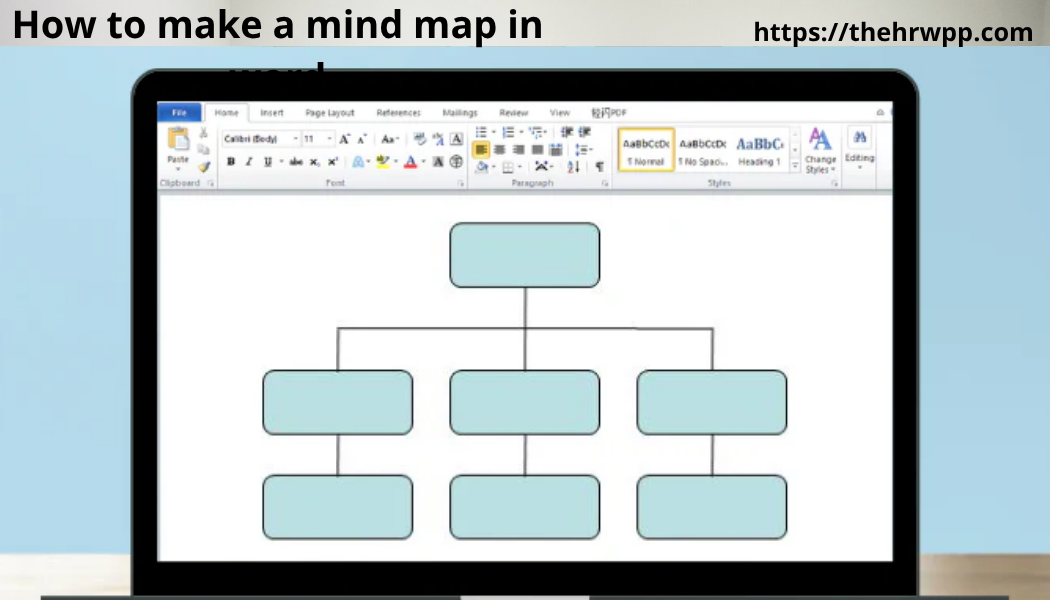
Learning how to make a mind map in word is one of the easiest ways to organize ideas, improve productivity, and simplify complex information. Whether you are a student, business owner, teacher, marketer, or project manager, mind maps help you think clearly and visually.
Many people use expensive software to create mind maps, but the truth is that Microsoft Word already has built-in tools that can help you design professional-looking mind maps quickly. If you already use Microsoft Word, you do not need additional software to get started.
In this complete guide, you will learn:
- What a mind map is
- Why mind maps are useful
- How to make a mind map in Microsoft Word step-by-step
- Different methods for creating mind maps
- Advanced customization tips
- Common mistakes to avoid
- Best templates and design ideas
- Productivity tips for students and professionals
- FAQs most websites do not cover
This guide is written in very easy English so beginners can follow along without confusion.
What Is a Mind Map?
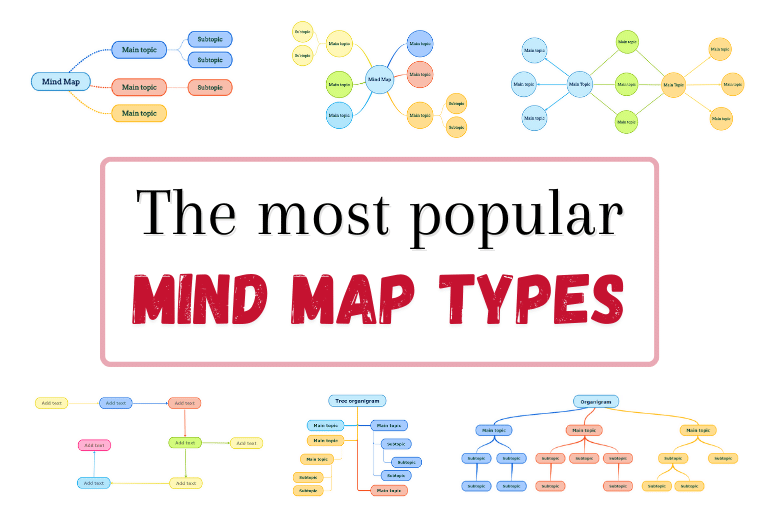
A mind map is a visual diagram that organizes ideas around one main topic. The main idea stays in the center, while related ideas branch outward like a tree.
For example, if your main topic is “Digital Marketing,” your branches may include:
- SEO
- Social Media
- Email Marketing
- Content Marketing
- Paid Ads
Each branch can then split into smaller subtopics.
Mind maps help your brain process information faster because humans understand visuals better than plain text.
Why People Use Mind Maps
Before learning how to make a mind map in word, it is important to understand why mind maps are so popular.
Better Organization
Mind maps turn messy information into a clean structure.
Faster Learning
Students often remember visual information better than long notes.
Improved Creativity
Mind mapping encourages brainstorming and idea generation.
Easier Planning
Businesses use mind maps for project planning, workflows, and meetings.
Better Problem Solving
Mind maps help identify connections between ideas.
Why Use Microsoft Word for Mind Mapping?
There are many mind mapping tools online, but Microsoft Word remains one of the most accessible options.
Here are the biggest advantages:
Easy to Use
Most people already know basic Word functions.
No Extra Software Needed
You can create mind maps using tools already included in Word.
Professional Design Options
Word allows customization with shapes, colors, icons, and SmartArt.
Easy Sharing
You can print, email, or export your mind map as a PDF.
Great for Beginners
Unlike advanced design tools, Word is simple for first-time users.
Tools You Need Before Starting
To learn how to make a mind map in microsoft word, you only need:
- Microsoft Word 2016, 2019, 2021, or Microsoft 365
- A computer or laptop
- Your topic or brainstorming idea
Optional tools:
- Stylus or touchscreen device
- Color palette ideas
- Icons or images
How to Make a Mind Map in Word Using SmartArt
This is the easiest and fastest method.
Step 1: Open Microsoft Word
Start by opening a blank document.
Step 2: Go to the Insert Tab
At the top menu, click “Insert.”
Step 3: Click SmartArt
In the Illustrations section, select “SmartArt.”
A new window will appear with many diagram options.
Step 4: Choose a Diagram Style
For mind maps, the best SmartArt categories are:
- Hierarchy
- Relationship
- Radial
- Cycle
Radial diagrams work especially well for mind maps.
Step 5: Insert the Diagram
Click your preferred design and press “OK.”
Step 6: Add Your Main Topic
The center shape should contain your main idea.
Example:
“Business Growth”
Step 7: Add Branches
Add related topics around the center idea.
Example branches:
- Marketing
- Finance
- Hiring
- Customer Service
Step 8: Add More Levels
You can add subtopics beneath each branch.
For Marketing:
- SEO
- Social Media
- Email Campaigns
Step 9: Customize Colors and Fonts
Use the SmartArt Design tab to:
- Change colors
- Add styles
- Resize shapes
- Change fonts
Step 10: Save Your Document
Save your file regularly to avoid losing progress.
How to Make a Mind Map in Word Using Shapes
Some people prefer complete control over design. In that case, shapes work better than SmartArt.
Step 1: Open a Blank Document
Start fresh for easier positioning.
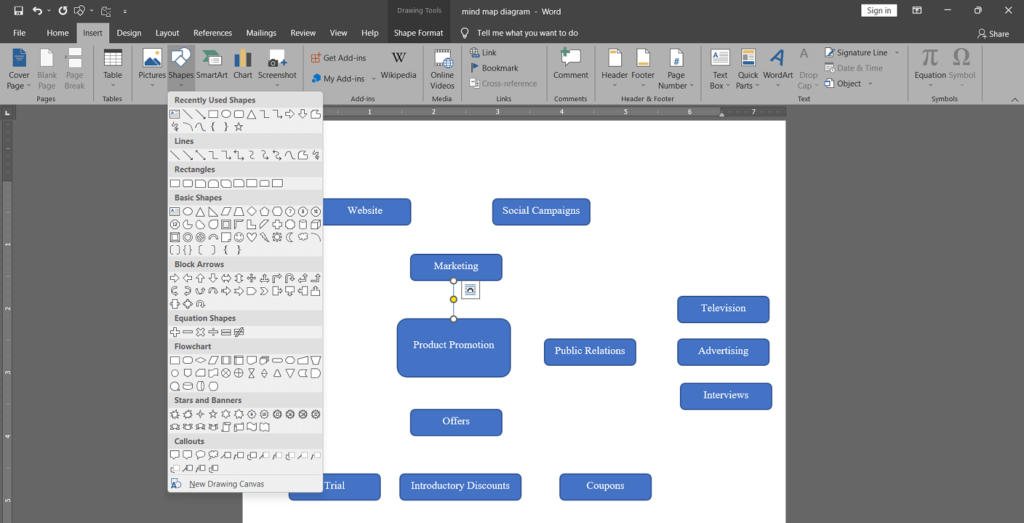
Step 2: Insert Shapes
Go to:
Insert → Shapes
Choose circles, rectangles, or rounded boxes.
Step 3: Create the Main Topic
Place one large shape in the center.
Step 4: Add Supporting Ideas
Insert smaller shapes around the center.
Step 5: Connect Shapes
Use lines or arrows to connect ideas.
You can find these in:
Insert → Shapes → Lines
Step 6: Add Text
Right-click a shape and choose “Add Text.”
Step 7: Design the Mind Map
Customize:
- Colors
- Borders
- Text styles
- Backgrounds
Step 8: Group Everything
Select all elements and group them so they move together.
SmartArt vs Shapes: Which Is Better?
SmartArt Is Better For:
- Beginners
- Fast creation
- Simple designs
- Business reports
Shapes Are Better For:
- Full customization
- Creative layouts
- Advanced mind maps
- Unique visual styles
Best Design Tips for Professional Mind Maps
A professional mind map looks clean, organized, and easy to understand.
Keep the Center Clear
Your main topic should stand out immediately.
Use Colors Wisely
Different colors help separate categories.
Example:
- Blue for planning
- Green for finance
- Red for urgent tasks
Avoid Too Much Text
Use short phrases instead of long sentences.
Use Icons
Icons improve visual understanding.
Leave White Space
Crowded mind maps become difficult to read.
Maintain Consistent Fonts
Using too many fonts looks unprofessional.
Best Mind Map Ideas for Students
Students benefit greatly from learning how to make a mind map in word.
Exam Preparation
Break subjects into smaller topics.
Essay Planning
Organize arguments before writing.
Research Projects
Track sources and ideas visually.
Language Learning
Map vocabulary and grammar concepts.
Science Revision
Show relationships between scientific concepts.
Best Mind Map Ideas for Businesses
Businesses also use mind maps daily.
Project Planning
Track tasks and deadlines.
Marketing Strategy
Visualize campaign goals and channels.
Team Brainstorming
Generate ideas during meetings.
Customer Journey Mapping
Understand user experiences.
Business Expansion
Plan growth opportunities visually.
How Teachers Use Mind Maps
Teachers use mind maps to:
- Explain lessons visually
- Improve student engagement
- Simplify difficult topics
- Encourage creativity
- Support memory retention
Mind maps work especially well for visual learners.
How to Make a Mind Map in Word on Mac
The process is almost identical on Mac devices.
Also read:What Does a Mind Map Look Like? Complete Beginner’s Guide for 2026
Main Steps
- Open Word
- Click Insert
- Choose SmartArt or Shapes
- Create your diagram
- Customize the layout
Mac users may notice small interface differences, but the overall process remains the same.
How to Make a Mind Map in Word on Mobile Devices
Microsoft Word mobile apps also support basic mind mapping.
However, desktop versions are much easier for larger projects.
For mobile:
- Use SmartArt when possible
- Keep layouts simple
- Avoid overly detailed diagrams
Common Mistakes Beginners Make
Understanding mistakes can improve your results.
Adding Too Much Information
Mind maps should summarize ideas, not become full documents.
Poor Color Choices
Too many bright colors reduce readability.
Overcrowding
Leave enough spacing between branches.
Using Long Sentences
Short keywords work best.
Ignoring Hierarchy
Organize information from major topics to smaller details.
How Mind Maps Improve Brain Function
Mind maps are not just visual tools. They also improve how the brain processes information.
Better Memory
Visual connections strengthen memory recall.
Improved Focus
Mind maps reduce distractions.
Faster Idea Generation
The branching structure encourages brainstorming.
Better Understanding
Relationships between ideas become clearer.
Best Fonts for Mind Maps in Word
Choosing the right font improves readability.
Recommended fonts:
- Calibri
- Arial
- Verdana
- Aptos
- Segoe UI
Avoid overly decorative fonts.
Best Colors for Mind Maps
Professional mind maps usually use soft, balanced colors.
Good combinations include:
- Blue and gray
- Green and white
- Black and gold
- Purple and light blue
Avoid neon colors unless creating educational material for children.
Advanced Mind Mapping Features in Word
Once you master the basics, you can create advanced designs.
Add Icons
Insert → Icons
Add Images
Insert → Pictures
Add Hyperlinks
Useful for project management.
Use Text Effects
Add shadows or glow effects carefully.
Use Templates
Templates save time and improve consistency.
Best Free Mind Map Templates in Word
Microsoft Word includes many diagram templates.
Popular template styles:
- Brainstorming maps
- Business strategy maps
- Study planners
- Workflow maps
- Organizational charts
Templates help beginners create polished mind maps faster.
How to Print a Mind Map Properly
Many users create mind maps but struggle when printing.
Use Landscape Mode
Landscape layouts fit mind maps better.
Reduce Margins
This creates more space.
Check Print Preview
Always review before printing.
Export as PDF
PDFs preserve formatting across devices.
How to Collaborate on Mind Maps
Modern teams often work together remotely.
Use Microsoft 365
Cloud sharing allows real-time collaboration.
Add Comments
Team members can leave suggestions.
Track Changes
Useful for business projects.
How Mind Maps Help with Productivity
Mind maps improve productivity because they reduce mental clutter.
Better Time Management
Visual planning helps prioritize tasks.
Faster Decision Making
Connections become easier to understand.
Reduced Stress
Organized thoughts reduce overwhelm.
Improved Communication
Teams understand plans faster.
SEO Planning Using Mind Maps
Digital marketers often use mind maps for SEO strategy.
You can map:
- Keywords
- Content ideas
- Internal links
- Blog categories
- User intent
For example, this article itself could begin as a mind map with branches like:
- Benefits
- Tools
- Step-by-step guide
- FAQs
- Tips
How YouTubers Use Mind Maps
Many creators searching for how to make a mind map in word youtube tutorials use mind maps for:
- Video scripting
- Content planning
- Thumbnail ideas
- Audience research
- Upload schedules
Mind maps help creators organize content faster.
Best Alternatives to Word for Mind Mapping
Although Word works well, some users may later upgrade to dedicated tools.
Popular alternatives include:
- XMind
- MindMeister
- Canva
- Lucidchart
- Miro
Still, Word remains one of the easiest starting points for beginners.
How AI Is Changing Mind Mapping
Artificial intelligence is transforming mind mapping in 2026.
Also read:How Can I Make a Mind Map? The Complete Beginner’s Guide to Creating Powerful Mind Maps
Modern AI tools can:
- Generate topic ideas
- Suggest branches
- Organize information automatically
- Summarize large notes
- Create visual structures quickly
Microsoft is also integrating AI-powered features into its ecosystem.
How to Make a Beautiful Mind Map in Word
If you want visually impressive results, follow these advanced design techniques.
Use a Central Theme
Choose a consistent design style.
Balance the Layout
Spread branches evenly.
Use Matching Shapes
Consistency improves appearance.
Add Visual Hierarchy
Important ideas should appear larger.
Keep It Simple
Minimalist designs often look most professional.
Best Use Cases for Mind Maps
Mind maps work well in almost every industry.
Education
Study notes and revision.
Healthcare
Patient workflow planning.
Marketing
Campaign development.
Technology
Software architecture planning.
Personal Development
Goal setting and habit tracking.
How Long Does It Take to Create a Mind Map?
Simple mind maps may take:
- 10–20 minutes for beginners
- 5–10 minutes for experienced users
Large business mind maps may require several hours.
How to Learn Faster with Mind Maps
To maximize learning:
- Use keywords only
- Review maps regularly
- Add colors for memory triggers
- Speak ideas aloud while mapping
- Simplify complex information
Why Visual Learning Matters in 2026
Modern education and workplaces increasingly prioritize visual communication.
People consume massive amounts of information daily, so visual organization has become essential.
Mind maps simplify information overload.
That is why learning how to make a mind map in microsoft word is now considered a valuable productivity skill.
Future Trends in Mind Mapping
Mind mapping continues evolving.
Expected future trends include:
- AI-generated diagrams
- Voice-controlled mapping
- Interactive 3D mind maps
- Real-time cloud collaboration
- Virtual reality brainstorming
Microsoft Word may also expand its visual diagram tools further.
Final Thoughts
Learning how to make a mind map in word is one of the easiest ways to improve organization, creativity, and productivity. Microsoft Word provides beginner-friendly tools that allow anyone to create professional mind maps without expensive software.
Whether you use SmartArt for quick diagrams or Shapes for advanced customization, Word gives you enough flexibility for school, business, content creation, and personal planning.
The key to creating effective mind maps is simplicity. Focus on clear structure, visual organization, and concise ideas. Over time, you will create better and faster mind maps naturally.
As workplaces and education continue moving toward visual communication, mind mapping skills will become even more valuable in the future.
Frequently Asked Questions
Can I create a mind map in Word for free?
Yes. If you already have Microsoft Word, you can create mind maps without additional software.
Is Word good for professional mind maps?
Yes. Word works well for professional projects, presentations, and brainstorming.
What is the easiest way to create a mind map in Word?
Using SmartArt is the easiest method for beginners.
Can I use Word Online for mind maps?
Yes, but desktop versions offer more design features.
Are mind maps useful for ADHD students?
Many ADHD learners find mind maps helpful because they simplify information visually.
